
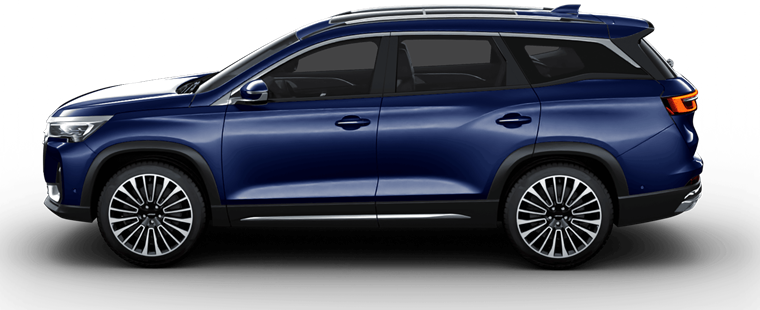
X90 Plus
Seven-seat family crossover Jetour. We installed the applications ourselves, through this site, on a live machine with motor 2.0 and Android 9. An important quirk of this model: without a third-party launcher, installed app icons don't show up in the stock menu - so the bundle includes ATV Launcher, which opens automatically after installation.
Connect and installHow to reboot the X90 Plus head unit
-
Turn off the head unit with a single press of the power button The power button is next to the volume knob. After pressing it, a clock will appear on screen.
-
Shift into reverse Wait for the camera feed to turn on in the head unit.
-
Shift into neutral (N) From reverse into the neutral position.
-
Hold down the power button Hold it until the screen goes dark and the head unit reboots. After it boots up, the volume knob works again.
This model's infotainment
We completed the installation through the site on a car with motor 2.0 and Android 9. Debug entry is a service code in the "Phone" app. On this model, installed app icons don't show up in the stock menu, so a third-party launcher is required (included in the bundle). We haven't tested the method on the 1.6 or on Android 10 - differences are possible.
How to enable ADB on Jetour X90 Plus
Debugging is enabled via a service code in the "Phone" app and choosing the USB mode. The code is shared across the Chery/Jetour family.
-
Open the "Phone" app (dialer) on the head unit You'll need to dial the service code like a regular number.
-
Dial the code *621317658# The engineering menu will open. This is the shared code for the Chery/Jetour family. We installed on an X90 Plus with the 2.0 engine, haven't tested on the 1.6.
-
In the USB settings, select "Device" mode You need to switch USB specifically to "Device" mode, not "Host"/charging - otherwise your computer won't see the head unit over ADB.
-
Connect a USB-A↔USB-A cable to your computer You need a USB-A↔USB-A cable that supports data transfer (a Type-C↔USB-A cable also works), not just charging. After this, the head unit should be detected in the browser when you click "Connect device" below.
-
Confirm the prompt on screen, if it appears "Allow USB debugging?" dialog - accept it. On some firmware versions this dialog may not appear.
What to do if it won't connect
-
Check the USB mode After entering the code *621317658#, the USB menu must have "Device" mode selected. If it's set to "Host" or charging - your computer won't see the head unit.
-
Reconnect the cable Disconnect and reconnect the cable; if needed, dial the code again and select "Device".
-
Check your computer browser and OS Chrome or Edge on Windows 10/11 or macOS is required - other browsers and phones are not supported.
-
Try another cable and port Some cheap cables only carry power, no data - you need a good-quality USB-A↔USB-A cable that supports data transfer.
-
On Windows - install the ADB driver If the head unit still doesn't appear when you click "Connect device", some Windows PCs need the universal ADB driver: download here, install it and reboot. No driver is needed on Mac.
-
Didn't help - message support This model is new; we'll advise based on your firmware and clarify the steps.
Connect and install
Connect the head unit to your computer via USB - and install the bundle in one click. Works in Chrome and Edge on desktop.
You need a USB cable and ADB debugging enabled on the head unit (see instructions above). On first connect, confirm the prompt on the car screen.