
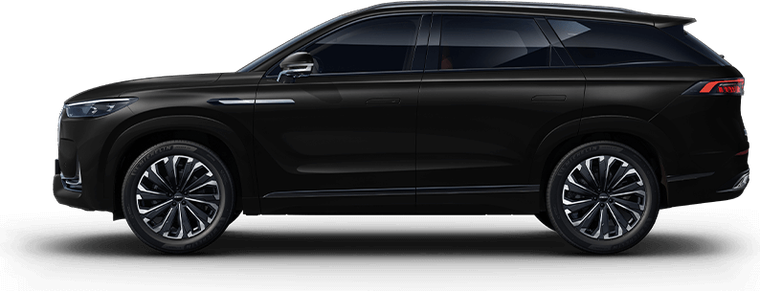
J8
J7's bigger sibling - large seven-seat Chery-group SUV with Snapdragon 8155 infotainment. ADB enable is similar to J7 but engineering menu access differs.
Connect and installImportant about firmware: on newer head unit firmware, the manufacturer is gradually closing off third-party app installation, and Jaecoo owners roll back the firmware to regain access. Exactly which versions are closed off on the J8 isn't named in public sources, so we don't claim specific numbers. If installation doesn't work - contact support, we'll sort it out for your version.
This model's infotainment
The Snapdragon 8155 is confirmed by dealer specifications. The Android version isn't officially disclosed. The USB-A↔USB-A cable is confirmed by a J8 owner (they specify - version 3.0). Important: the same chip on the J7 and J8 doesn't mean the same head unit - engineering menu entry is different here, and owners note that not every APK that works on the J7 installs on the J8.
How to enable ADB on Jaecoo J8
Engineering menu entry differs from the J7: instead of tapping the word "Version", you tap the right part of the screen. Switch the head unit language to English beforehand - it's easier to navigate that way.
-
Switch the head unit language to English Settings → "System" → language. The engineering menu is partly in English and Chinese.
-
Open Settings → "System" and tap the right part of the screen 10 times The engineering menu will open. On some cars you need to tap the picture (image) in settings instead - not the version text.
-
Tap "USB2.0" → then "DEVICE" The J8 owner describes the chain like this: USB2.0 AUTH → USB1 → DEVICE EYE PATTERN. This switches the physical USB port from host mode to device mode. ⚠️ Nearby there's a paired mode HOST EYE PATTERN - it's responsible for the USB flash drive. While the port is set to DEVICE, a flash drive won't be readable in it: once you're done installing, switch the port back to HOST.
-
Connect a USB-A↔USB-A cable to your computer You need a cable that supports data transfer (both ends regular, "flat" USB-A). After this, the head unit should be detected in the browser when you click "Connect device" below.
-
Confirm the prompt on screen, if it appears "Allow USB debugging?" dialog - accept it. On some firmware versions it may not appear.
If there's no "DEVICE" button - a backup method via Encryption
On some cars there's no DEVICE button in the engineering menu - in that case ADB is enabled via the ENCRYPTION section. The method is the same as the one we describe for the Jaecoo J7.
-
Switch the car's language to English Without this, the needed items may not be shown.
-
Open the ENCRYPTION section in the engineering menu Write down the long number shown on screen.
-
Take the last 6 digits and multiply by 802018 The last 6 digits of the result are the password. If you take more than six digits, that's fine - the answer won't change: only the last 6 digits of the original number affect the last 6 digits of the result. But taking fewer than six is not allowed - the password will come out wrong.
-
Enter the password and switch "ADB Switch" to the Open position After that, go back and enable DEVICE mode for the USB port.
There are also encryption versions 2 and 3, where the password is calculated differently (an additional Random number is needed). We have not confirmed the algorithm for those - if that's your case, contact support, don't guess at random.
What to do if it won't connect
-
Check the port mode The USB port must be switched to DEVICE mode - without this, the head unit won't be detected as a device.
-
Reconnect the cable Disconnect, turn ADB back on on the head unit - and only then plug in the cable.
-
Check the cable and browser You need a good-quality USB-A↔USB-A cable that supports data transfer, and Chrome or Edge on your computer (Windows 10/11 or macOS).
-
Check your firmware version On newer head unit firmware, third-party app installation is sometimes blocked by the manufacturer. Message support - we'll advise based on your version.
-
On Windows - install the ADB driver If the head unit still doesn't appear when you click "Connect device", some Windows PCs need the universal ADB driver: download here, install it and reboot. No driver is needed on Mac.
Connect and install
Connect the head unit to your computer via USB and install the recommended bundle in one click. Works in Chrome and Edge on desktop.
You need a USB cable and ADB debugging enabled on the head unit (see instructions above). On first connect, confirm the prompt on the car screen.