
← All models
Jetour
Dashing
Supported
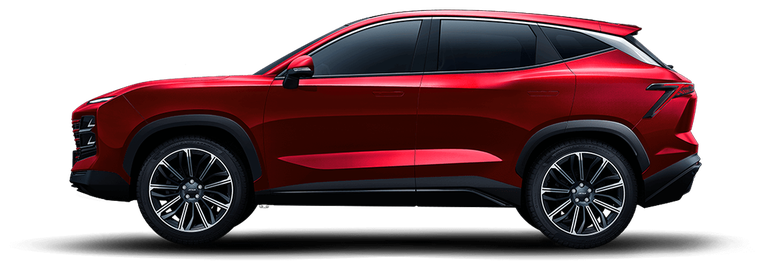
Hard-to-miss crossover - sharp lines, unusual lighting, few physical buttons, up to 15.6" screen control. Design and modern feel over classic cues.
Connect and installSpecs
This model's infotainment
Android version
Android 9 (base) / Android 10 (some trims)
Processor
Snapdragon 6125
RAM
to be confirmed
Internal storage
to be confirmed
Android 9 is confirmed for 2023-2024 cars; Android 10 shows up on versions with the "new interface" and on all-wheel-drive trims.
Before connecting
How to enable ADB on Jetour Dashing
Enabled through the engineering menu, opened from the "Phone" app on the head unit screen.
-
Turn off Bluetooth on the head unit Do this beforehand - the code may not work if Bluetooth is on.
-
Open the "Phone" app and dial
*#20201030#*The engineering menu will open. -
Tap "USB" An item in the engineering menu that just opened.
-
Tap "Device" Then return to the main interface using the button in the top-left corner.
-
Connect a USB-A to USB-A cable The port is under the armrest, closer to the driver - plug the USB-A cable in there.
-
Confirm the prompt on screen if it appears Accept the "Allow USB debugging?" dialog. On some firmware this dialog may not appear at all.
What to do if it won't connect
-
Reconnect the cable Unplug, enable ADB on the head unit again, then reconnect the cable.
-
If the head unit has a dashcam with its own USB drive Remove it and reboot the head unit (usually hold the volume − button on the steering wheel for ~10 seconds).
-
Check the USB port mode In developer settings, select "File transfer", not "Charge only".
-
Check your computer browser and OS Chrome or Edge on Windows 10/11 or macOS is required - other browsers and phones are not supported.
-
Try another cable and port Cheap cables often carry power only - use a quality USB-A↔USB-A data cable, not a charge-only one.
-
On Windows - install the ADB driver If the head unit still doesn't appear when you click "Connect device", some Windows PCs need the universal ADB driver: download here, install it and reboot. No driver is needed on Mac.
Tool
Connect and install
Connect the head unit to your computer via USB and install the recommended bundle in one click. Works in Chrome and Edge on desktop.
⚠ This feature only works in Chrome or Edge on desktop - WebUSB is not supported in your browser.
Contact support - we can help manually.
You need a USB cable and ADB debugging enabled on the head unit (see instructions above). On first connect, confirm the prompt on the car screen.
Connected
-
⚠ Advanced mode is at your own risk. Do not install heavy apps or apps that require Google services (Play Services, Gmail, YouTube, etc.) - most of these head units lack them; such apps may not run or behave poorly. Built-in storage is limited; extra APKs can fill it and slow the system. We are not responsible for head unit issues from advanced-mode installs. Nor for whether the apps you install yourself actually work: we have not tested them on these head units and cannot know in advance whether they will start or how they will behave.
Waiting for device connection...