
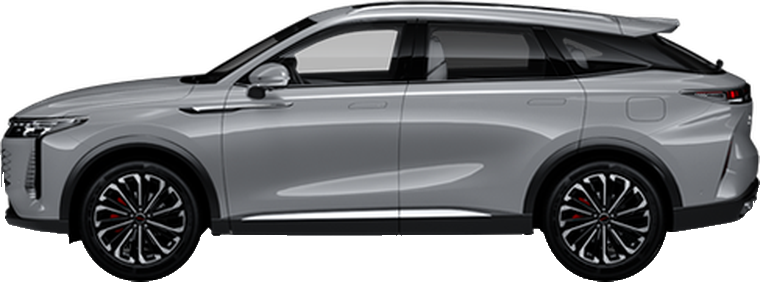
RX
EXEED flagship crossover with dual curved screens and Snapdragon 8155. Head unit is Chery-family like Jaecoo J7/J8, so ADB enable is familiar.
Connect and installTwo important points: while ADB is enabled, Android Auto and CarPlay won't work. And on newer head unit firmware, access to the engineering menu is locked - owners have reported this on builds 2887 and 3081. Also keep in mind that dealers update the head unit firmware during scheduled maintenance without asking the owner - after such a visit, ADB may disappear.
This model's infotainment
The Snapdragon 8155 chip and the dual 12.3" screen - based on owner reports and specifications. The Android version is not officially disclosed. The engineering menu is in Chinese.
How to enable ADB on EXEED RX
The engineering menu is opened by tapping the EXEED lion logo in Settings, and ADB itself is enabled through the Encryption section with a calculated password. Switch the head unit's language to English beforehand.
-
Open Settings → "General" → "System" For convenience, switch the interface language to English first.
-
Tap the EXEED lion logo 7-10 times Tap slightly above the lion's head. This opens the engineering menu - it's in Chinese.
-
Open the "Encryption" item ⚠ Tap the edge of the button - hitting the center triggers the voice assistant instead of the menu.
-
Calculate the password from the number on screen Take the last 6 digits of the number shown and multiply by 802018. The last 6 digits of the result are the password. Example: 008502 → 8502 × 802018 = 6,818,757,036 → password 757036. Taking more than six digits doesn't change the result - the extra digits don't matter. But taking fewer than six digits is not allowed - the password will come out wrong.
-
Enter the password and switch "ADB Switch" to OPEN This enables debugging. ⚠️ If the screen shows an ID and a separate Random (RAND) instead of one number, you have a different encryption version, and the formula above won't produce the password. Don't guess at random - contact support.
-
Switch the USB port to device mode In the engineering menu, find "USB2.0" and select "Device". After that, the head unit will be detected by the computer.
-
Connect a USB-A to USB-A cable and confirm the prompt on screen You need a data cable. Plug it into the upper USB port - the one used for Android Auto: based on owner reports, the wrong port is the most common reason the computer doesn't see the device. Accept the "Allow USB debugging?" dialog if it appears.
How to enable Wi-Fi on the head unit (so apps can work)
For the navigator and music apps to sign in, the head unit needs internet access - the easiest way is to share it from your phone as a hotspot. The engineering menu has a "WiFi Manager" item (just "WIFI" on some cars) - turn on "WiFi open" there, and the head unit will then see available networks.
⚠️ Turn off "WiFi open" when you're done. In this mode the head unit itself broadcasts Wi-Fi as an open network with no password - anyone near the car can connect to it.
What to do if it won't connect
-
Check that the port is in Device mode Without switching "USB2.0" to "Device", the head unit won't be detected.
-
Check whether ADB got reset There are reports that after a head unit reboot, the ADB switch returns to the off position. We haven't confirmed this, but if it stops working after a reboot, just turn ADB on again.
-
Check the firmware version The guide we relied on was verified on head unit build 1438. On newer builds - owners mention 2887 and 3081 - access is locked. Write to support.
-
Check the cable and browser You need a good-quality USB-A to USB-A data cable and Chrome or Edge on the computer.
-
On Windows - install the ADB driver If the head unit still doesn't appear when you click "Connect device", some Windows PCs need the universal ADB driver: download here, install it and reboot. No driver is needed on Mac.
Connect and install
Connect the head unit to your computer via USB and install the recommended bundle in one click. Works in Chrome and Edge on desktop.
You need a USB cable and ADB debugging enabled on the head unit (see instructions above). On first connect, confirm the prompt on the car screen.