
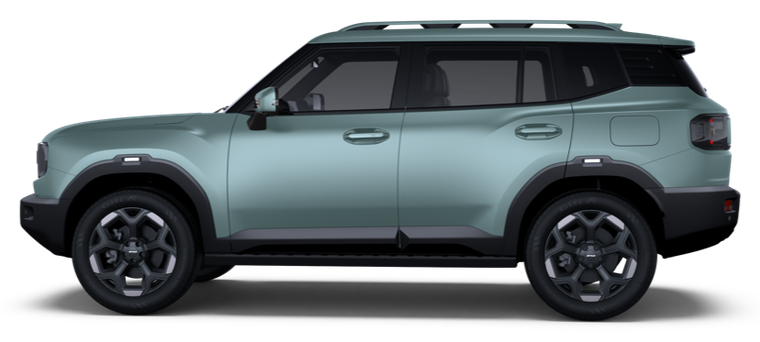
T1
T2's smaller sibling - compact ladder-frame SUV in brutal square styling. Same Snapdragon 8155 chip and TOUR OS as T2, so app install works the same way.
Connect and installThis model's infotainment
The Snapdragon 8155 chip and TOUR OS 2.0 system - based on owner reviews and specifications (Autohome, Wikipedia). The screen is 12.8" on base trims and 15.6" on higher trims. The Android version is not officially disclosed. In terms of hardware, the head unit is close to the Jetour T2 (same 8155), but that doesn't guarantee full identity - some data is still being confirmed.
How to enable ADB on Jetour T1
On the T1, debugging isn't enabled through the "USB2.0" menu like on the T2, but through a service code in the "Phone" app and the encryption menu. The menu is in Chinese - navigate by the layout of the items.
-
Open the "Phone" app (dialer) on the head unit You'll need to dial the service code like a regular number.
-
Dial the code *#20241130# This opens the engineering encryption menu (on screen - the Chinese "加密设置").
-
Enter today's date in the password field Format YYYYMMDD - for example, for July 19, 2026 that's 20260719. The password changes every day along with the head unit's date.
-
Find the ADB toggle and turn it on Switch the ADB slider to the "on" position. This is what enables debugging.
-
Connect a USB-A to USB-A cable to the computer You need a USB-A to USB-A cable specifically for data transfer, not just charging. After that, the head unit should be detected in the browser when you click "Connect device" below.
-
Confirm the prompt on screen if it appears Accept the "Allow USB debugging?" dialog. On some firmware this dialog may not appear.
What to do if it won't connect
-
Check the date password The password in the encryption menu is the head unit's current date in YYYYMMDD format. If the date on the head unit is wrong, the password won't work either.
-
Reconnect the cable Turn ADB off and back on, then reconnect the cable.
-
Check your computer browser and OS Chrome or Edge on Windows 10/11 or macOS is required - other browsers and phones are not supported.
-
Try another cable and port Some cheap cables carry power only, no data - you need a quality USB-A to USB-A data cable.
-
Didn't help - write to support The model is new; we'll advise on your firmware and refine the steps.
-
On Windows - install the ADB driver If the head unit still doesn't appear when you click "Connect device", some Windows PCs need the universal ADB driver: download here, install it and reboot. No driver is needed on Mac.
Connect and install
Connect the head unit to your computer via USB and install the recommended bundle in one click. Works in Chrome and Edge on desktop.
You need a USB cable and ADB debugging enabled on the head unit (see instructions above). On first connect, confirm the prompt on the car screen.