
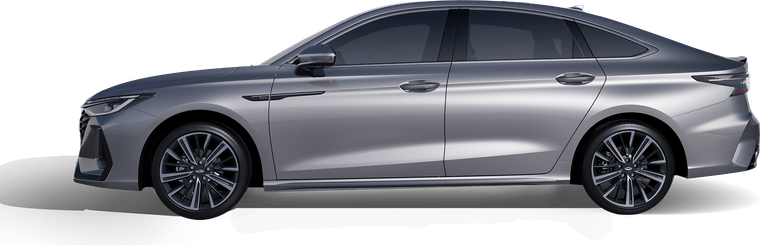
Arrizo 8
Chery flagship sedan. Nice for us: instructions use the cabin USB port - no need to reach behind the radio. Engineering menu opens via taps and a password derived from vehicle ID.
Connect and installThis model's infotainment
The processor is a Renesas R-Car H3 (factory designation G6SH-r8a7795), a 2015 chip; this is confirmed by two independent sources, including a translation of the Chinese platform description. The Android version is not officially disclosed anywhere, but the hardware is old. The password algorithm is the same as on the Jaecoo J7 and other Chery group cars.
How to enable ADB on Chery Arrizo 8
The menu opens with taps in the corner of the screen, then you need a password - it's calculated from your car's ID. The ADB button is hidden in the "Log" tab and appears only after several taps.
-
Turn on the car's power The head unit must be fully booted.
-
Open "System Settings" → "System" tab Scroll down and select "Version Information".
-
Tap quickly and repeatedly in the bottom right corner, below the car image Keep tapping persistently until the hidden menu appears.
-
Select the top left block - it shows the car ID Write it down, you'll need it to calculate the password.
-
Calculate the password: ID digits × 802018 Take the last 6 digits of the ID and multiply by 802018. The last 6 digits of the result are the password. Taking more than six digits won't change the answer - the extra digits don't affect it. But taking fewer than six is not allowed: owner discussions sometimes suggest "take 4 digits", but that's only correct for an ID whose 5th and 6th digits from the end happen to be zero - for others it gives the wrong password.
-
Select the bottom left block and enter the password The engineering menu will open.
-
Recommended: turn on Wi-Fi and connect to your phone "WIFI" tab → turn on → connect to your phone's hotspot. The head unit needs internet so apps can sign in.
-
Open the "Log" tab and tap the "log" label Keep tapping the highlighted "log" label until three new blocks appear above (usually around 5 taps).
-
Tap the first block - "ADB" This enables debugging.
-
Connect a USB-A↔USB-A cable to the standard cabin port The standard port was enough for the people who wrote these instructions - no need to disassemble the dashboard. The cable must support data transfer. After this, the head unit should be detected in the browser when you click "Connect device" below.
After installation, the USB flash drive stopped being readable - what should I do?
That's expected: while ADB mode is on, the USB port is busy with debugging and doesn't work as a normal flash drive port. Turn off ADB after installation - it's the button right after the one you used to turn it on (same "Log" tab). After that, the flash drive will work again.
What to do if it won't connect
-
Check your firmware version This is reason #1. Owners report that on 02.05.00 the method no longer works, and from 02.06.00 the system removes third-party apps on its own. The working version is 02.04.00.
-
Try a different password variant Take a different number of the ID's last digits (6, 7, or 4) and recalculate - it varies by car.
-
Check that the ADB button appeared The three new blocks in the "Log" tab appear only after several taps on the "log" label.
-
Check the cable and browser You need a good-quality USB-A↔USB-A cable that supports data transfer, and Chrome or Edge on your computer (Windows 10/11 or macOS).
-
On Windows - install the ADB driver If the head unit still doesn't appear when you click "Connect device", some Windows PCs need the universal ADB driver: download here, install it and reboot. No driver is needed on Mac.
Connect and install
Connect the head unit to your computer via USB - and install what you choose in one click. Works in Chrome and Edge on desktop.
You need a USB cable and ADB debugging enabled on the head unit (see instructions above). On first connect, confirm the prompt on the car screen.